Tray, palette and shortcuts
System tray
Closing the window keeps Lanyard running in the system tray (the notification area on Windows, the menu bar on macOS). Right-click the icon for:
- Open Lanyard
- One menu per git provider, titled with the active account (for example GitHub · work). Pick another account to switch, or None (use default SSH keys) to deactivate.
- Test active accounts
- Hosts: your servers (connect, test, switch key) and git hosts (test, use an account).
- Manage hosts…, Manage keys…, ssh-agent…
- Start at login
- Quit Lanyard
The tray updates by itself when you change something in the app, the CLI, or an editor.
Command palette
Press Ctrl/⌘+K, or click the search box in the top bar.
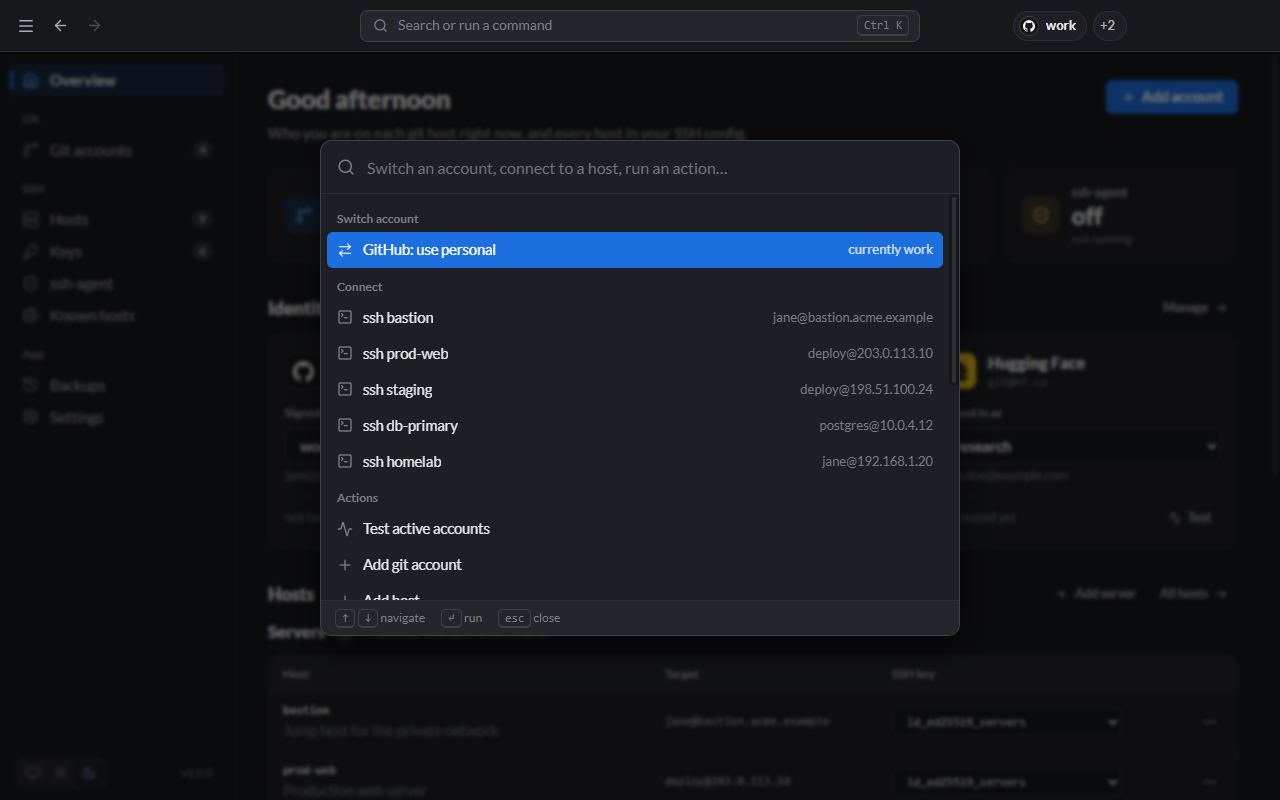
Type to filter, use ↑/↓ to move and Enter to run. It can:
- switch the active account on any provider
- connect to any server
- switch the key any server uses
- run actions: test accounts, add an account or host, generate a key, scan a host
- jump to any page
- change the theme or accent colour
Keyboard shortcuts
Ctrl on Windows and Linux, ⌘ on macOS.
| Shortcut | Action |
|---|---|
| Ctrl+K | Command palette |
| Ctrl+1 … 8 | Go to a page, in sidebar order |
| Alt+← / → | Back / forward |
| Ctrl+N | Add git account |
| Ctrl+Shift+N | Add host |
| Ctrl+, | Settings |
| Ctrl++ / - / 0 | Zoom in / out / reset |
| Ctrl+W | Close the window (keeps running in the tray) |
| Ctrl+Q | Quit Lanyard |
App menu
On Windows and Linux, the ☰ button at the top left opens the app menu (File, Edit, View, Go, History, Help). Help has shortcuts to the SSH folder, Lanyard's data folder and Backups.