
Keys
The Keys page lists the key pairs in ~/.ssh, with their type, fingerprint and what uses them.
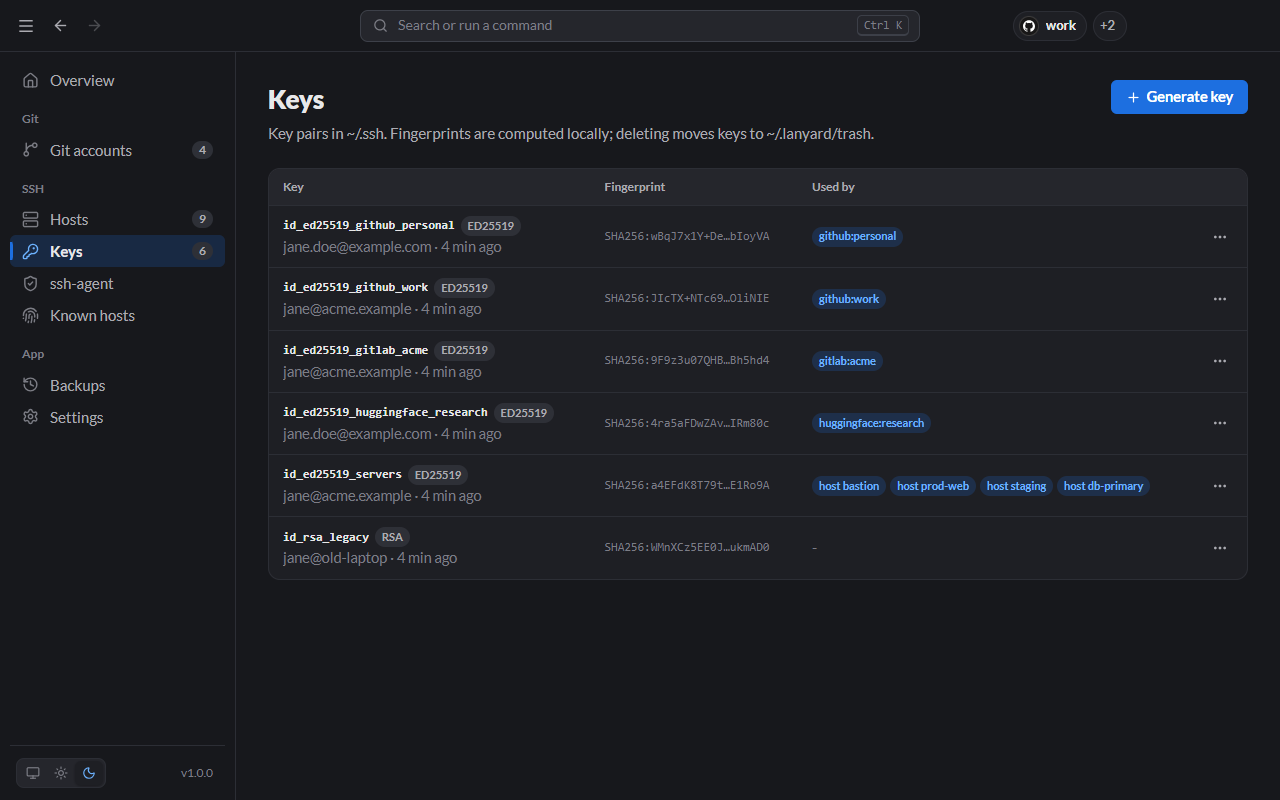
The Used by column shows which git accounts and servers reference each key, so you can tell at a glance whether a key is safe to delete.
Generate a key
Click Generate key.
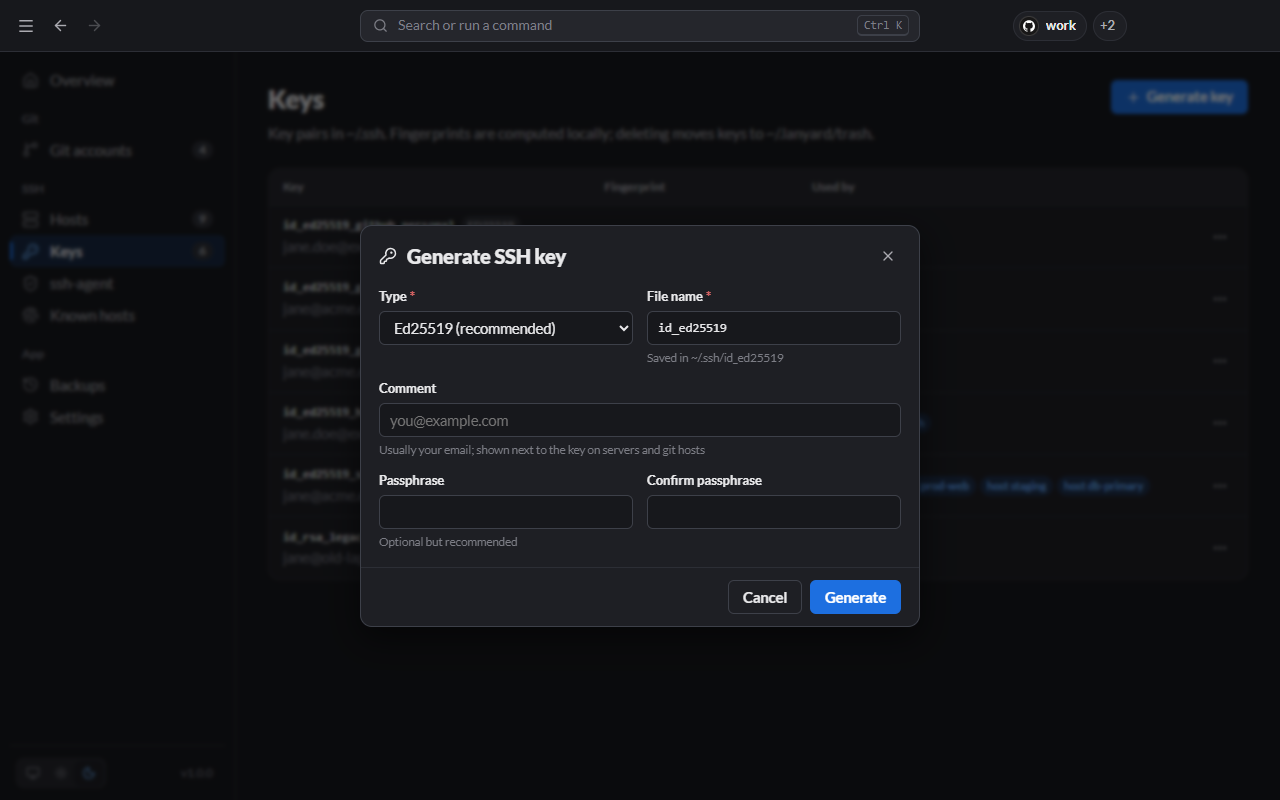
| Field | What to enter |
|---|---|
| Type | Ed25519 for almost everything. RSA 4096 or ECDSA only for systems that need them. |
| File name | Saved in ~/.ssh. Lanyard warns you if the name is taken and suggests a free one. |
| Comment | Usually your email; it is shown next to the key on servers and git hosts. |
| Passphrase / Confirm | Optional but recommended. A key with a passphrase is useless to someone who copies the file. |
Keys for git accounts are generated from the Add account dialog instead, so they get a matching name.
From the CLI:
Terminal
lanyard keys gen id_ed25519_servers -C jane@example.comKey actions
Open a key's ⋯ menu:
| Action | What it does |
|---|---|
| Show public key | Shows the .pub line with a Copy public key button, to paste into a server or provider. |
| Add to ssh-agent | Loads the key into the agent. For a key with a passphrase, a terminal asks for it. |
| Set / Change passphrase | Adds, changes or removes the passphrase. Leave the new one empty to remove it. |
| Restrict permissions to you | Makes the private key readable only by you. OpenSSH refuses keys that others can read. |
| Show in folder | Opens the folder in Explorer, Finder or your file manager. |
| Delete (move to trash) | Moves both files to ~/.lanyard/trash/<date>/. Nothing is deleted permanently. |
To get a deleted key back, move its files from ~/.lanyard/trash/<date>/ back into ~/.ssh.