
Lanyard user guide
Lanyard helps you wear the right identity everywhere. It does two jobs:
- Git accounts: switch which GitHub, GitLab, Bitbucket or Hugging Face account your git commands use, in one click.
- Remote SSH management: keep every server you SSH into in one list; connect, switch each server's key, set up jump hosts and trust host keys safely.
Underneath, it keeps your SSH keys, ssh-agent and known_hosts in order. It runs as a desktop app, from the system tray, or as the lanyard command.
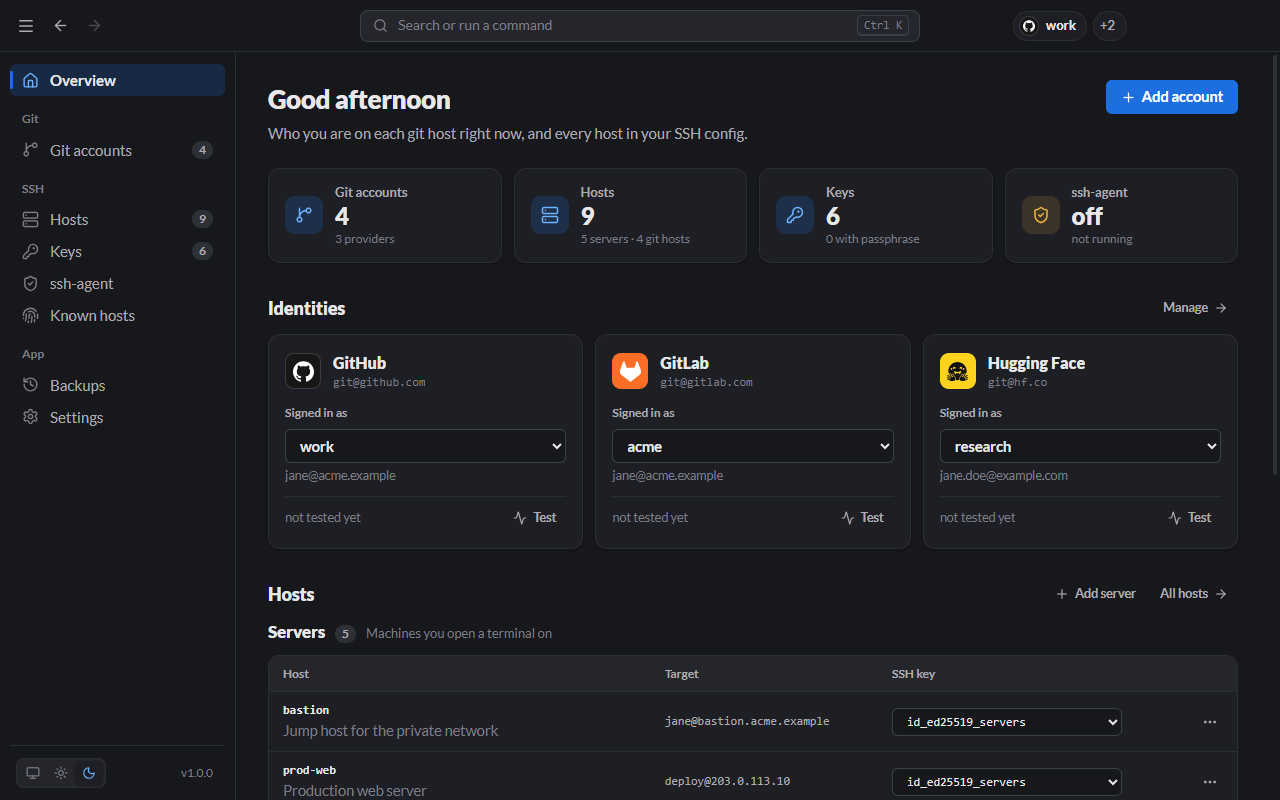
Start here
- Installation: download and install, or get the CLI only.
- Getting started: your first account, from download to
git push, in about 5 minutes.
Using the app
| Page | What it is for |
|---|---|
| Git accounts | Add accounts, switch between them, use two accounts side by side, clone as an account. |
| Hosts (remote servers) | Every server you SSH into: add, edit, connect, switch its key, jump hosts. |
| Keys | Generate keys, copy public keys, passphrases, permissions. |
| ssh-agent | Load keys so you type a passphrase once. |
| Known hosts | Check and trust server fingerprints; fix "host key changed". |
| Backups | Undo any change Lanyard made to your SSH files. |
| Settings | Theme, accent colour, tray behaviour, terminal, files. |
| Tray, palette and shortcuts | Work without opening the window. |
Reference
- CLI reference: every
lanyardcommand and option. - How it works: what Lanyard writes to
~/.ssh/config, and every file it touches. - Troubleshooting:
Permission denied (publickey), agent not running, host key changed, and more.
Supported git providers
GitHub, GitLab, Bitbucket, Hugging Face, Azure DevOps, Codeberg, Gitea and SourceHut are built in. Add any other server, such as a self-hosted GitLab or Gitea, as a custom provider.